Sharing Dropbox Folder with multiple user accounts on single computer
Sharing Dropbox Folder with multiple user accounts on single computer (Mac)
- The Dropbox folder is simply a folder on the mac under the /Users/<username> of the primary user whose Dropbox account is to be shared. E.g. /Users/<username>/Dropbox … for username bioadmin, the dropbox folder would typically be /Users/bioadmin/Dropbox
- Share the Dropbox folder using the Sharing feature of System Preferences.
- Add the Dropbox folder or subfolders to the Shared folders list as shown below
- Select the Dropbox or other shared folder
- In the Users list, add the local users you want to grant access to as well as the particular access mode (Read Only/Read & Write)
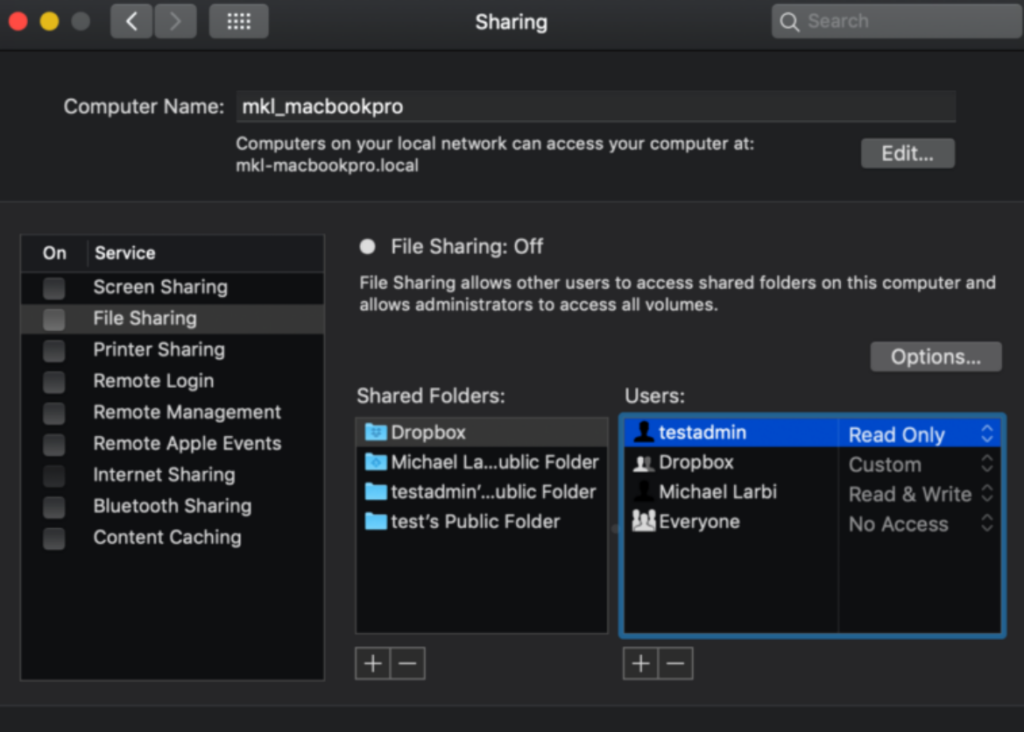
- Login in as the user to whom access has been granted (e.g. testadmin in the above screenshot)
- Start Terminal & use this command to create a symbolic link to the shared folder: ln -s /Users/<folder_owner_username>/Dropbox <name you want to call it under this account>
- Examples: ln -s /Users/mlarbi/Dropbox /Users/testadmin/ml_dropbox ln -s /Users/mlarbi/Dropbox ~/ml_dropbox
- Because the folder is shared by the owner using System Preferences (step 2 above), it can also been viewed under Shared Folders in Finder.