Locker Organization and Access
The IT Service Desk has a secure locker facility in order to:
- Store IT equipment
- Allow faculty/students to pickup/drop-off IT equipment that has been requested/loaned out
Every member of our team would have access to the entire locker facility in order to store/retrieve IT equipment from corresponding lockers.
LOCKER ORGANIZATION:
The below table lists each locker number and its associated equipment, for your reference:
| Locker Number | Stored IT Equipment |
|---|---|
| 1 | Top Shelf: Apple and Windows Laptop Loaners Bottom Shelf: iPad and Surface Tablet Loaners |
| 2 | Top Shelf: Apple Power Adapter Extension Cable | Docking Stations and Cables (Surface, Dell, Third Party) | Printing Cables | Surface (Go and Regular) Chargers Bottom Shelf: Non Apple Chargers (USB-C, Dell) | Power Cables |
| 3 | Apple Chargers | iPad Air and Surface Tablets (need to be reimaged/fixed?) |
| 4 | Apple Pencils | iPad Keyboards and Cases | Lenovo Styli | ReMarkable | Surface Keyboards and Pens |
| 5 | Bluetooth Adapters | Ethernet Adapters | Hubs (USB-C, USB-2.0 and 3.0, HDMI) | Type C-Male to Type HDMI-Female | USB-2.0 or 3.0 to Lightning Cable |
| 6 | Apple, Lenovo, and Dell Loaners |
| 7 | AA and AAA Batteries | Airtame | Battery Charger | Joan Mount and Chargers | Visionect Mount |
| 8 | Display ports | USB to C | C to C | Lightning Wires | Miscellaneous Wires |
| 9 | Airtame | IT Service Desk Laptops and iPads | Label Printers | Laptop Stands |
| 10 | Apple Mice/Trackpads and Charging Stations | Mousepad | Wireless Mice |
| 11 | Apple keyboards |
| 12 / 18 | Wired Keyboards | Wired Mice | Wireless Keyboard and Mouse combos |
| 13 | Display Port Cables | HDMI to HDMI |
| 14 | Bluetooth USB Adapters | External Hard Drives | Logitech USB Receivers |
| 15 | Earbuds (Apple and others) | Headphones | Speakers | Soundbar |
| 16 | Desktop Speakers | Remote | Tracking Video Bar | Webcam |
| 17 | Clickers | Desktop Stand | Locks | Pointers | Remotes | Wireless Charging Pads | Wireless Voice Amplifier |
| 19-24 | Reserved for pickup and drop-off facility |
HOW TO ACCESS THE LOCKERS TO STORE/RETRIEVE EQUIPMENT:
IMPORTANT NOTE: PLEASE DO NOT SWIPE YOUR BADGE AT THE LOCKER WITHOUT SELECTING MENU OPTIONS. SWIPE YOUR BADGE ONLY WHEN PROMPTED ON THE SCREEN.
- The locker has an interactive touch screen as shown below:
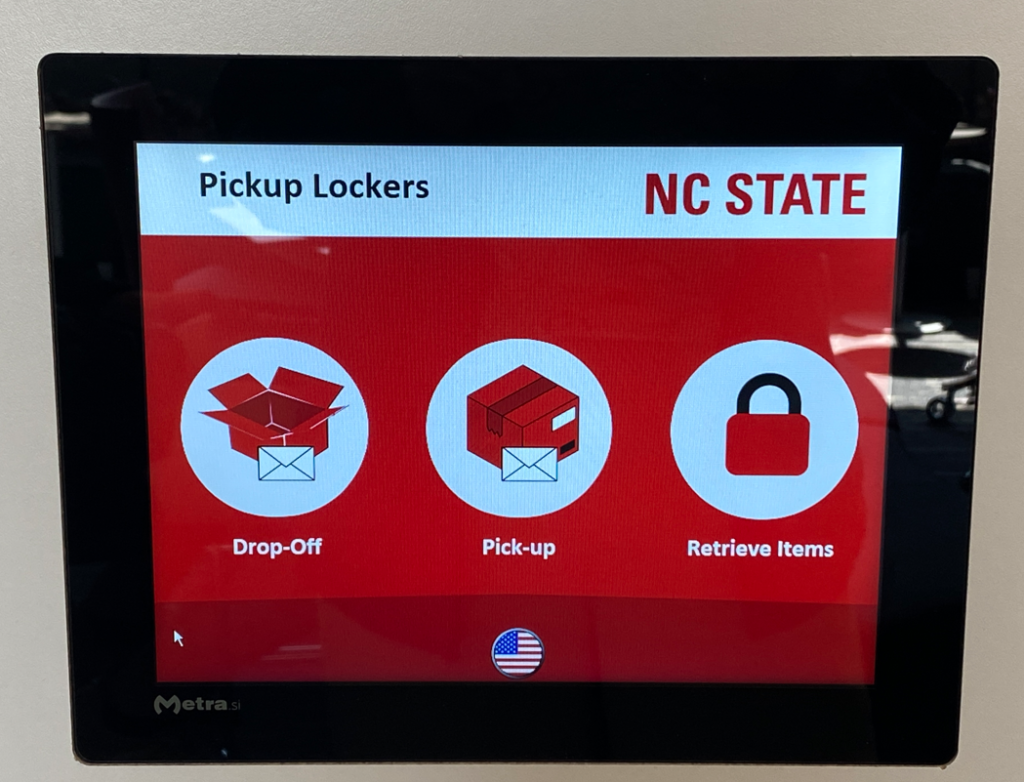
- In order to store an item in the locker or retrieve an item from the locker, select “Retrieve Items”
- Next, select “Unlock Locker”
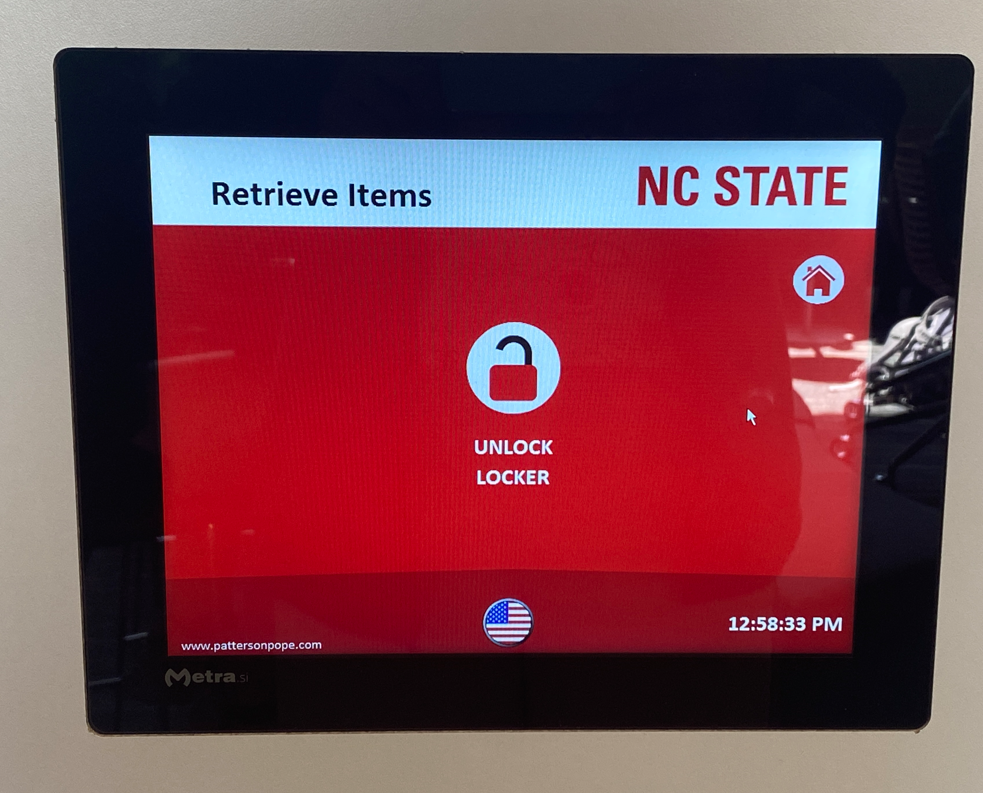
- Scan your NCSU ID card as shown:

- Select the locker number that you would like to open:

- Afterwards, the selected locker will open up for you. Ensure that the locker is closed once you are done storing/retrieving equipment.