Check-Out Asset/Accessory
Asset
- Select the desired asset
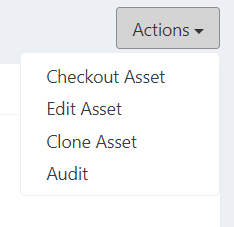
- Click “Action” on the top right corner and choose “Checkout Asset”
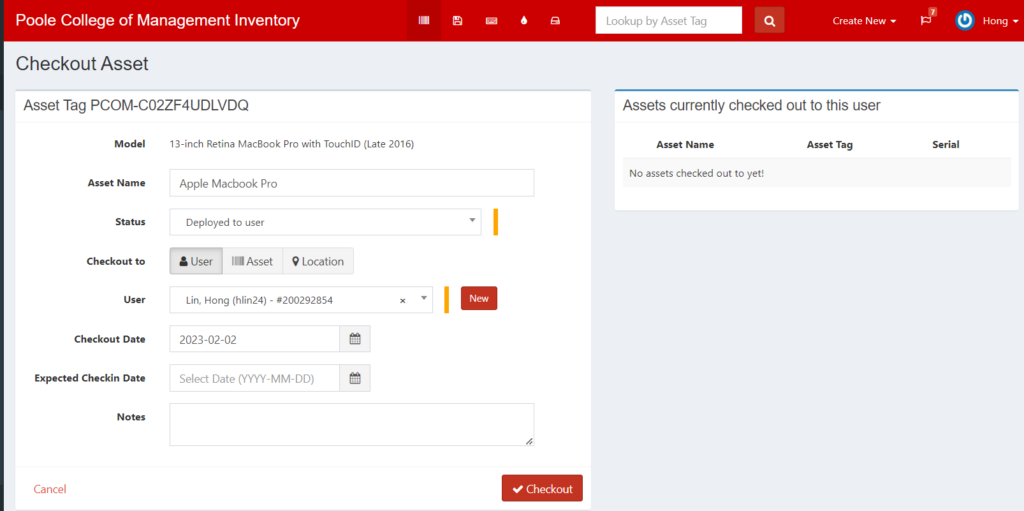
- Status: Deployed to User
- User: UnityID of the user
- If user does not exist, choose “New” and create a new user
- Checkout Date: the day equipment is checked out
- Expected Checkin Date/Note: recommended, but not required
- Click “Checkout”
- User: UnityID of the user
Accessory
- Find the desired accessory, click “Checkout” on the right side of the item.
- Fill out the following information:
- User: enter the unityID of the user. If the user is not listed, select “New” and fill out their information.
- Note: any additional information such as their office numbers, reasons for checking out, etc.
- Checkout
- Deployed: When an asset is deployed to a user, it is theirs to use and keep for however long they need it.
- Loaner: When an asset is loaned to a user, they are expected to return the device at a designated time.
Picking Up New Machines
When someone comes in to pick up a machine, Check the following:
- The machine is secured according to our standards.
- The user is able to log in normally from a full shutdown.
- The user can no longer recreate the initial problem if there was one.
- If the machine has been reimaged, check the following:
- The user’s email is set up properly.
- The correct users have the correct administrative rights.
- If the user had a loaner while we were working on their machine, document the return of the loaner on the inventory spreadsheet.
- Make sure PCOM sticker is on the laptop